1
Primary role
Source image
Defines the starting appearance
Generated video
Shows how the scene changes
Still to motion
Vidu image to video turns a strong still image into a short moving scene. Start from a product frame, character pose, illustration, or landscape and guide the motion with a focused prompt.
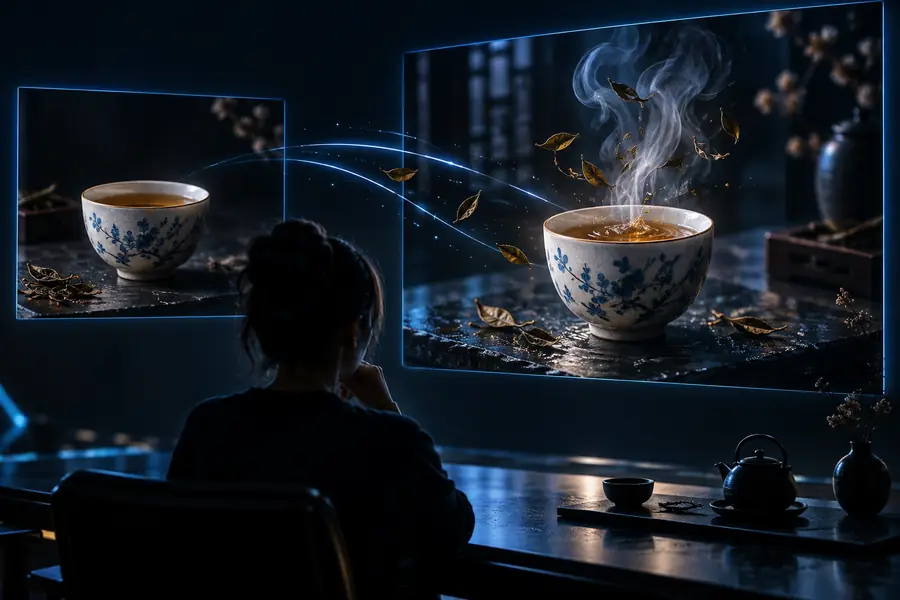
The conversion
Image-to-video keeps the visual identity of a source image while adding movement, camera behavior, and a sense of time.
Source image
Defines the starting appearance
Generated video
Shows how the scene changes
Source image
Single still frame
Generated video
Short moving sequence
Source image
Uploaded image or selected visual
Generated video
Motion direction and scene intent
Source image
Established before generation
Generated video
May shift through camera movement
Source image
Preserves a chosen look
Generated video
Adds rhythm, action, and atmosphere
Source image
Reference, concept, or keyframe
Generated video
Preview, social clip, or story beat
Source image
Clarity and framing
Generated video
Motion quality and continuity
A frame in motion
The still image gives Vidu AI a visual anchor. Your prompt then focuses the transformation on movement instead of asking the model to invent every part of the scene.
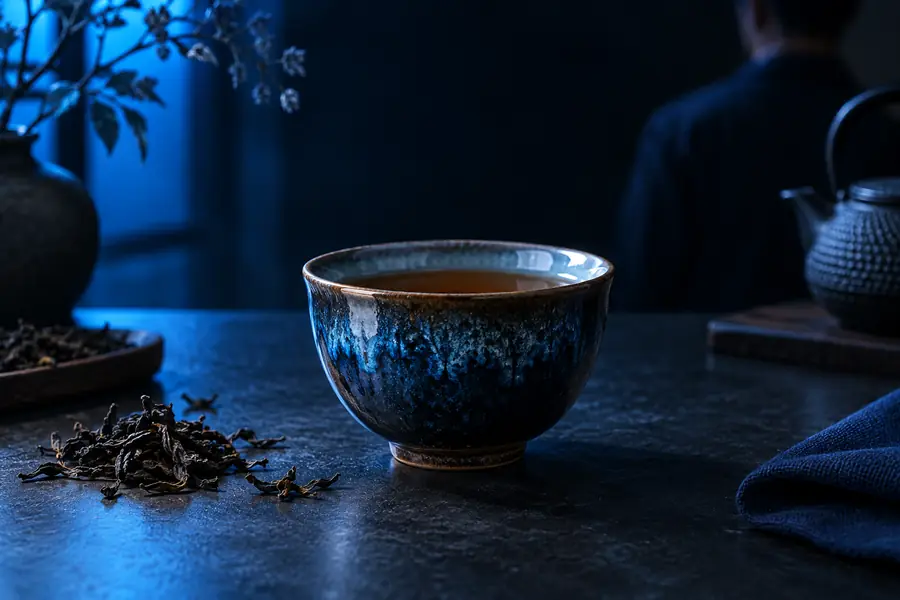
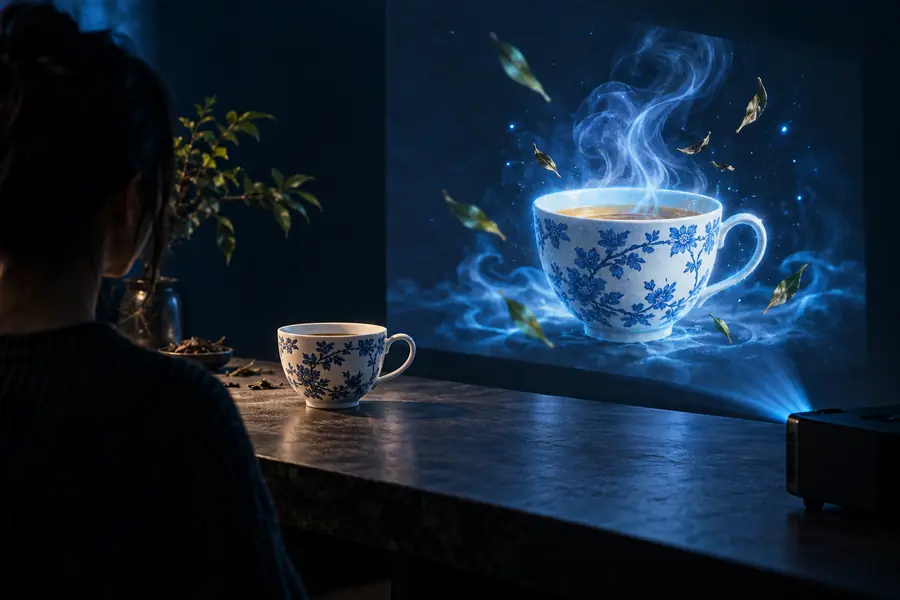
The image anchors appearance; the prompt directs motion.
Choose your starting point
Different creators begin with different visual goals. Choose the workflow that matches the asset you already have, then use Vidu AI to explore motion around it.
Start with a clean product render and describe a slow reveal, turntable, or lighting change.
Produce a motion concept before investing in a full shoot. For a prompt-first alternative, use vidu ai text to video.
vidu ai text to videoUpload a finished character or environment image and request subtle gestures, drifting atmosphere, or a camera move.
Give a still illustration a short narrative beat while keeping the original art direction visible.
reference to video ai freeTurn a poster, portrait, travel photo, or thumbnail into a more engaging moving opener.
Create a visual hook from an asset you already designed. You can also compare workflows in the vidu ai video generator guide.
vidu ai video generatorSimple workflow
A reliable result usually comes from separating visual direction from motion direction and checking the first generation before refining the prompt.
Choose a sharp source with an intentional subject, readable edges, and enough visual context for the requested movement.
State what moves, how it moves, and how the camera behaves. Specific actions are easier to review than a crowded list of changes.
Check subject continuity, unwanted distortions, pacing, and framing. Adjust one instruction at a time so you can see what improved.
Variant FAQ
It is a workflow that uses a still image as the visual starting point for a generated video. You provide the image and describe the motion, camera behavior, or atmosphere you want to see.
The image-to-video creation surface is associated with the Vidu AI image-to-video route. Open the creation workflow, add your source image, and follow the on-screen controls for describing motion.
Focus on visible movement, such as a person turning, fabric moving, light changing, or a camera pushing in. Keeping the prompt centered on one main action makes the result easier to evaluate and refine.
The workflow is designed to begin with an image, but the quality of the source affects how clearly the scene can be interpreted. A well-framed image with a distinct subject gives you a stronger starting point than a blurry or overcrowded frame.
Review the generated motion for continuity, subject shape, framing, and unwanted changes. Then revise one part of the instruction at a time, making the intended action and camera movement more concrete.