VA Vidu Ai

iPhone tutorial

How to use vidu ai on iphone without guesswork

Use your iPhone browser to prepare a prompt or image, send it to the video workspace, and check the result before saving it. The process is simple when you separate preparation, generation, and review.

Review before handoff

Decide which case you are

Your starting material determines the quickest route. Choose the case that matches what is already on your iPhone, then keep the first generation deliberately simple.

I only have an idea

Use the text route. Write one sentence describing the subject, movement, setting, camera feel, and approximate mood. For example: “A red kite rises above a windy beach as the camera follows it.” If you are researching how to use vidu ai on iphone, this is the cleanest first test because there is no image to crop or upload.

I already have a photo

Use the image route. Pick a clear photo from Photos, check that the subject is visible near the center, and describe the motion you want added. Ask for movement that fits the source image rather than trying to change every visual detail at once.

I need a repeatable character or object

Use a reference-based route when identity and appearance matter across the clip. Gather one or more useful reference images first, then specify the action and setting separately so the system has fewer competing instructions.
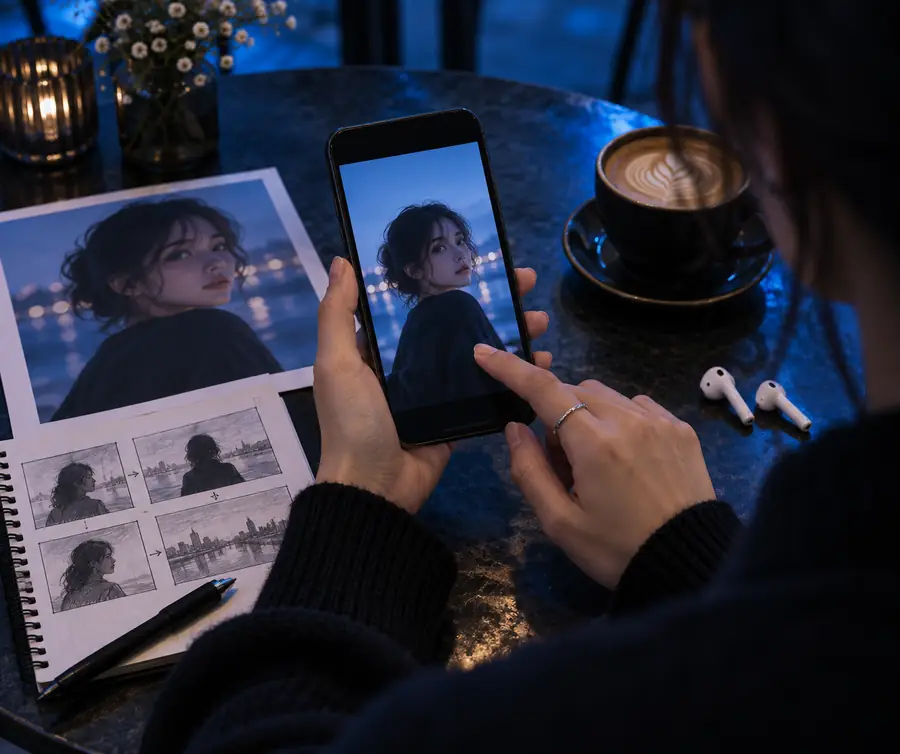
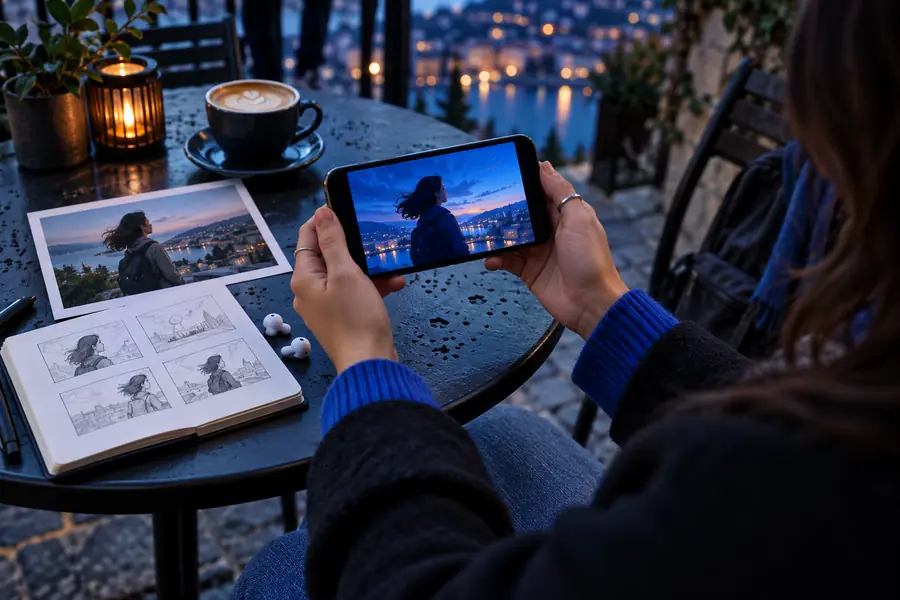
Path A: prepare your iPhone

Before opening the creation workspace, remove the small points of friction that cause failed uploads, unclear prompts, or hard-to-review results on a mobile screen.

Required

A current iPhone browser with a stable internet connection

Safari or another supported mobile browser is the practical starting point.

Optional

One clear source image, if you are using image-to-video

Use a sharp photo with the main subject easy to identify.

Required

A short prompt that names the subject, action, setting, and camera movement

Keep the first request specific rather than adding a long story.

Required

Enough local storage to save the generated clip

Delete duplicate downloads or move older videos if space is tight.

Optional

A quiet review moment with the phone held in portrait or landscape as needed

A larger view makes motion defects easier to spot.

Final check

Think of the workflow as a short timeline rather than one large action. Each stage gives you a chance to correct the next stage before you spend time reviewing a weak result.

  1. Start with a single visual idea

    Early mobile-friendly prompting works best when the request has one clear subject and one main action. A focused scene is easier to judge on a small screen than a crowded sequence with several characters and changes.

  2. Add an image when appearance matters

    A source photo gives the generation a visual anchor. On iPhone, this makes the Photos step important: choose the image first, then ask for movement that preserves the useful parts of the composition.

  3. Treat references as a separate input

    Reference-driven workflows are useful when a person, object, or style needs more consistency. They still benefit from short prompts because the image handles appearance while the words handle action.

  4. Review before you save

    Mobile generation is not finished when the preview appears. Watch the entire clip, inspect faces and hands, check the first and last frames, and only then save or share the version that meets your goal.

Final check

Compare the source and the generated result for motion quality, framing, and unwanted changes before you download the clip.

Before: source and prompt

An iPhone-focused video creation workflow before generation
A generated short video example after the prompt and source are processed
After: generated clip

The goal is not to make the before and after identical. Check whether the generated motion supports the original idea without changing the subject, framing, or mood in distracting ways.

Final check

An iPhone route is convenient, but it does not remove the normal limits of AI video generation or the practical constraints of a mobile browser.

It cannot guarantee perfect motion

A prompt may produce strange hands, warped objects, sudden camera changes, or movement that does not match the source image.

WorkaroundUse one main action, shorten the scene description, and regenerate with a more specific camera instruction.

It cannot repair every poor source photo

A dark, blurry, heavily cropped, or obstructed image gives the generation less visual information to follow.

WorkaroundChoose a brighter image with a clear subject and enough space around it before uploading.

It cannot make a long story in one clean pass

A single short generation is better suited to one moment than a complete multi-scene narrative with continuity.

WorkaroundCreate separate clips for separate beats, then assemble them in a mobile editor.

It cannot replace final review on a small screen

A preview may look acceptable at first glance while details break during movement or near the final frame.

WorkaroundWatch the full clip at least once, zoom in when possible, and keep only the strongest result.

Tutorial FAQ

These answers address the practical question behind the query: how to use the video workflow from an iPhone without confusing the input, generation, and review stages.

Yes, the practical approach is to open the creation workspace in a mobile browser and work from a prompt, photo, or reference image. The exact controls can vary by workspace, so keep your input ready and review the result before saving it.

Choose the text-based route and describe one subject, one main action, the setting, and the camera movement. Start with a short scene such as a kite moving above a beach, then add detail only when the first result shows what needs correction.

Choose the image-based route, select a clear photo from your Photos library, and explain the motion you want added. Keep the requested movement compatible with the original image so the generated clip has a stable visual anchor.

Use a reference when keeping the appearance of a person, object, or visual subject consistent matters more than starting from words alone. Prepare the reference before opening the workspace, then describe the action and setting separately.

Generated video interprets the prompt and source rather than copying every pixel exactly. Improve the next attempt by choosing a clearer image, reducing competing instructions, and naming the subject and desired movement more precisely.

Start creating
Start creating